SAML CONFIGURATION
Creating an Identity Provider for SAML Login
Pre-requisites
You must already have a SAML IdP (i.e. ADFS, Google) that can be accessed via the Internet. This SAML IdP will be used as an SSO login option for accounts.avayacloud.com.
Overview
Setting up SAML involves providing the IdP with the certificates, metadata, URLs and other details necessary for authenticating users. Once configured, SAML becomes another option for logging into Avaya Accounts without a password.
- The user logs into their computer.
- Launch the application or access a site (SP) such as the accounts.avayacloud.com.
- At the login screen, select the SAML option.
- The SP will contact the IdP for authentication (authorization request).
- The IdP will verify the user and create a response. This is a signed, XML formatted file that is sent to the SP (authorization response).
- The SP validates the user and provides access.
Configuring SAML
- Login to the Avaya Accounts website with your username and password. The site is: accounts.avayacloud.com.
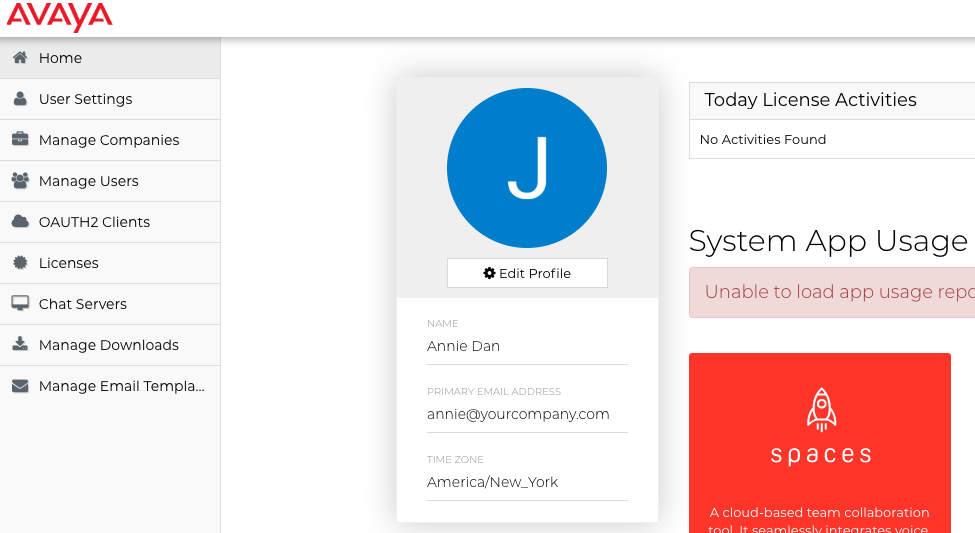
-
If it is not already present, create an entry for your company. You must have corporate administrator rights to do so.
-
Under Manage Companies , find your company and select Edit.
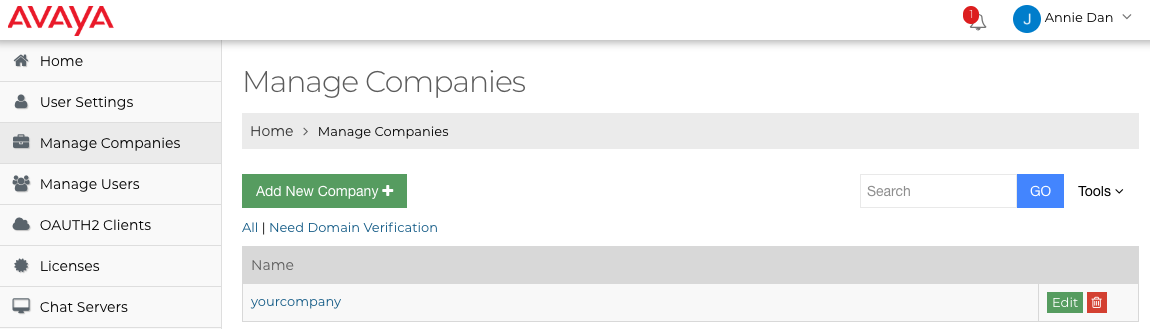
- Go to the Enterprise SSO tab and click Add An Enterprise SSO.
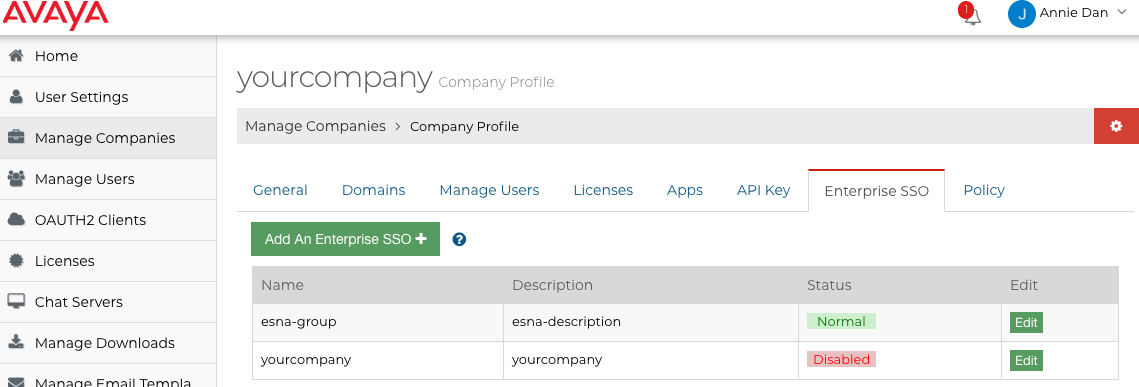
-
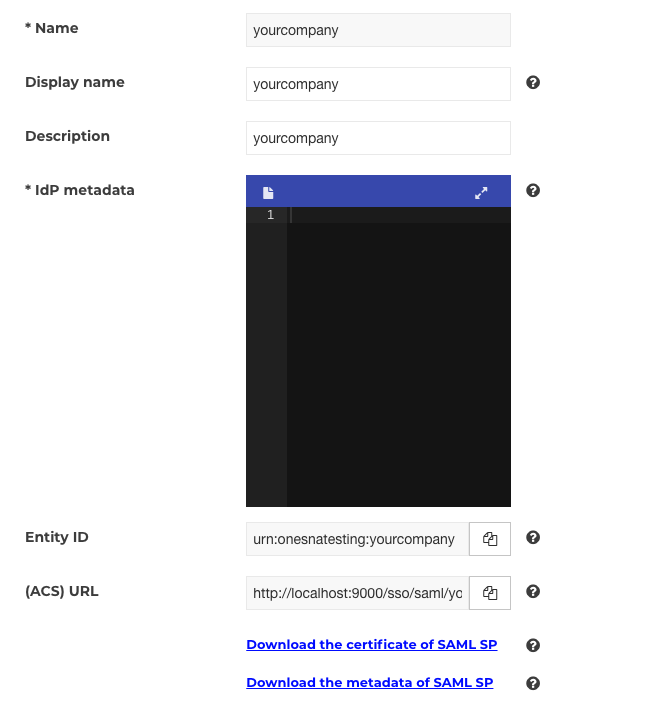
Enter a human friendly name for this setup, add a description for this connection if desired, then click Save.
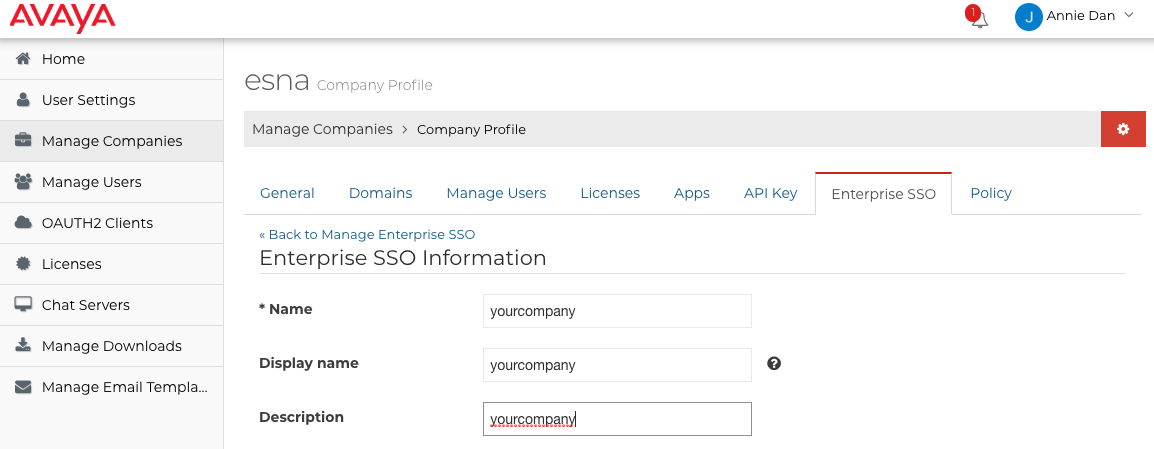
Note : The name must be unique within the license engine. For example, SAML-Sample. -
Information for the Entity ID and (ACS) URL is displayed. There are also two links: Download the certificate of SAML SP and Download the metadata of SAML SP. Send both URLs and the downloaded files to your SAML IdP.
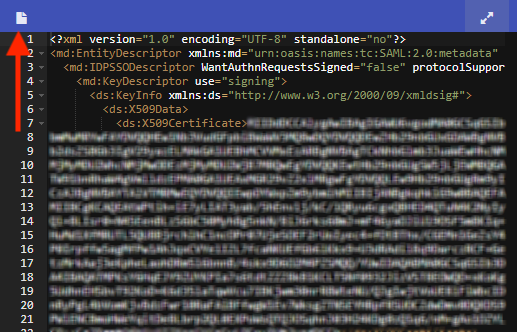
- The IdP will return a metadata file in xml format. Upload this file by clicking the icon beside IdP metadata. Click Save when finished.
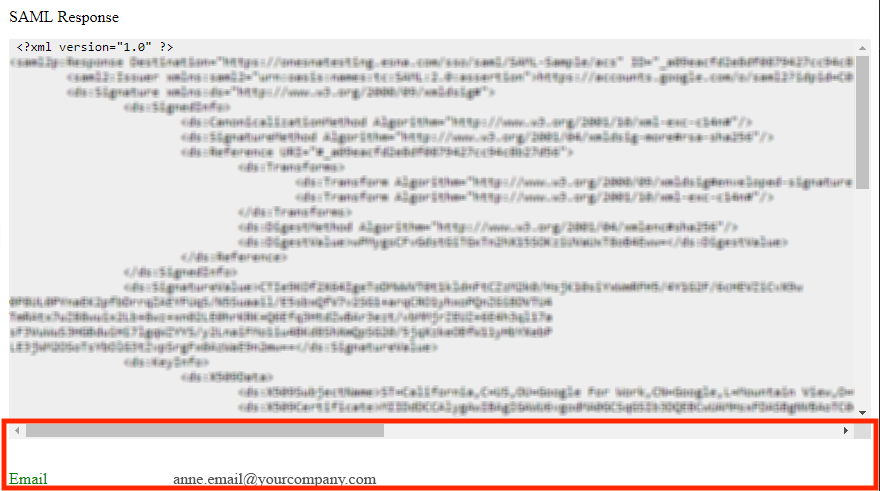
- Click Test to verify the configuration. Choose an account to test with. If the test page shows errors, modify the configuration and re-test.
-
If the company has a verified domain then you can enable this SAML SP as the login method.
Note : Only an email from same domain as the company can login using this method. -
Verify that the SAML login is working. Login to Avaya Accounts using an email from the same domain as the company, click the SAML icon and follow the instructions.
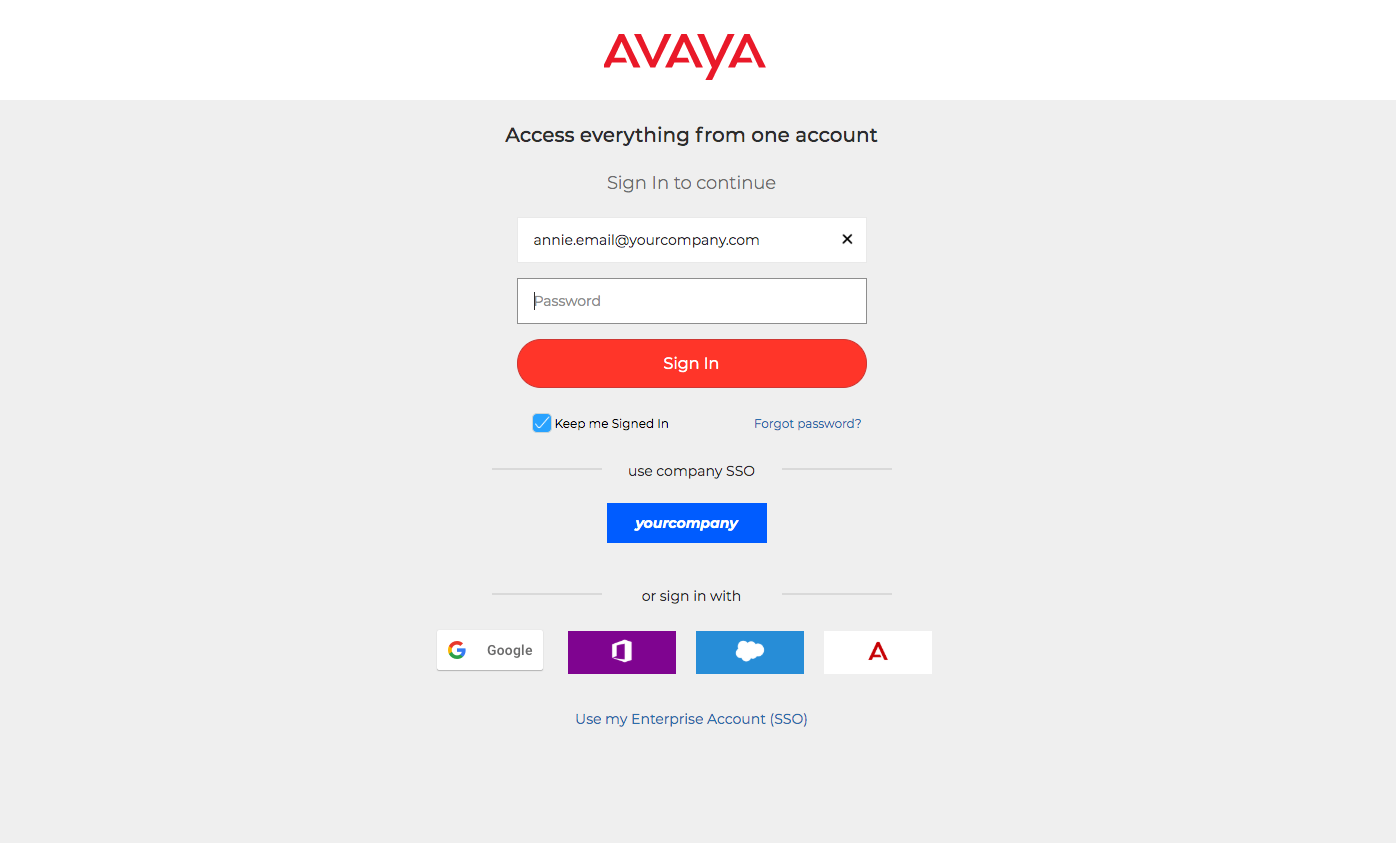
Note : Only an email from same domain as the company can login using this method. -
You can also click Use my Enterprise Account (SSO) to go to corporation sso login page to sign in
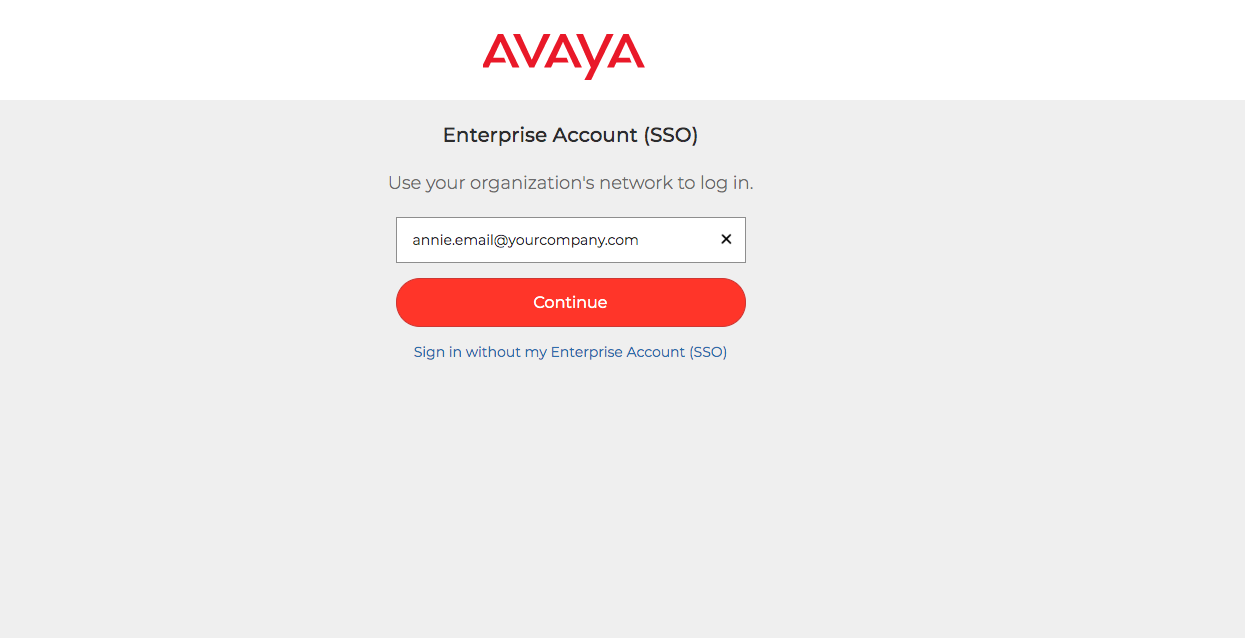
Hint : You must enter an email address before the available login methods will be displayed.
Until you enter an address, the system cannot tell which options you are eligible for.
Words to Know
(ACS) URL
The service provider's endpoint (URL) that is responsible for receiving and parsing an SAML assertion. Our test page shows a SAML assertion (SAML Response). This is helpful when trying to determine why users are not able to login.
Active Directory Federation Service (ADFS)
This is one potential IdP that used Windows Active Directory services for authentication.
Certificate of SAML SP
Give this certificate to the SAML IdP if they need a signed SAML Request or are encrypting the SAML Response.
Entity ID
A globally unique name for a Service Provider generated by Avaya Accounts.
Icon
Site administrators can set the login icon shown on the login page. At the login page, if a client enters an email address with the same domain as the company, this icon will be shown.
Identity Provider
The agency that authenticates users to the Service Provider.
Metadata of SAML SP
The XML formatted metadata file created by the SAML SP. Some SAML IdPs support being configured by such metadata files directly.
Metadata of SAML IDP
The XML formatted metadata file created by the SAML IDP.
NameId & NameId Format
NameId : Identifies the subject of a SAML assertion, which is typically the user who is being authenticated. NameId Format : Aligns the expectations between the IdP and the SP on the user identity that is communicated. Generally the IdP provides a set of NameId formats, and SP should select one when triggering a SAMLRequest.
Currently Avaya Accounts supports the following NameId Formats:
- urn:oasis:names:tc:SAML:1.1:nameid-format:unspecified
- urn:oasis:names:tc:SAML:2.0:nameid-format:unspecified
- urn:oasis:names:tc:SAML:1.1:nameid-format:emailAddress
- urn:oasis:names:tc:SAML:2.0:nameid-format:persistent
- urn:oasis:names:tc:SAML:2.0:nameid-format:encrypted
- urn:oasis:names:tc:SAML:2.0:nameid-format:transient
- urn:oasis:names:tc:SAML:2.0:nameid-format:entity
Property Map
The SAML Response, except the NameId subject, may contain additional attributes. Avaya Accounts requires the NameId subject, or the attribute which has the information of the authenticated user's email. Providing the attributes for the user's first name and last name is preferable. If there is valid attribute, put the attribute name into the input boxes.
Email : Enter NameID into this field.
LASTNAME / FIRSTNAME : These fields are optional. No entry is required.
Security Assertion Markup Language (SAML)
The set of protocols, commands and responses that are used to provide SSO authentication to an SP by an IdP.
Service Provider
The application that requires users to login. The IdP send authentication details to the SP that allow users to access the application.
Signed SAML Request
A signed SAML Request can help the SAML IdP to identify the replying part of SAML SP. Avaya Accounts always uses sha-256 to sign the SAML Request.
Single Sign-On (SSO)
The ability to access secure programs with just one set of credentials. Authenticating through a central authority makes subsequent sign-ons easier by sharing the same credentials.
SP initiated Flow & IdP initiated SSO
SP initiated Flow : An SP Initiated SSO flow is a Federation SSO operation that was started from the SP Security Domain by the SP Federation server creating a Federation Authentication Request. The user is redirected to the IdP with the message and a short string representing the operation state. Use this SSO option if your IdP supports it.
IdP initiated SSO : An IdP Initiated SSO flow is a Federation SSO operation that was started from the IdP Security Domain by the IdP Federation server creating a Federation SSO Response. The user is redirected to the SP with the response message and an optional operational state. Some IdPs (e.g. https://auth0.com) only support this flow.
TROUBLESHOOT
- If you run into a InvalidNameIDPolicy error in your Enterprise SSO test
then change
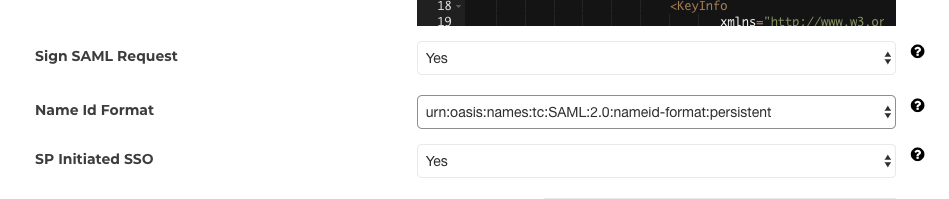
to
